
iClicker Accessibility
Accessibility Overview
iClicker and Macmillan Learning are committed to the goal of providing equal access to all products regardless of an individual’s age, ability, or situation and embraces the opportunity to develop services and information technologies that are accessible and usable by all individuals.
Fundamental Principles
In addition to addressing product compatibility with assistive technologies such as screen reader software, alternative keyboard devices, and voice recognition products, we are working to ensure that the content and platforms we provide are fully accessible by focusing on five fundamental principles:

Champion Equal Success
Commit to providing all users, regardless of abilities, equal learning opportunities.

Elevate Teaching & Learning Experiences
Craft user-friendly and standards-compliant designs that uplift and enrich the lives of all users.

Innovate with Purpose
Embrace accessibility challenges as inspiration to develop groundbreaking, inclusive solutions.

Encourage Lifelong Learning
Cultivate a culture of continuous growth, fostering a deep understanding of accessibility and disability inclusion that translates into transformative solutions.

Nurture Collaboration
Foster cooperation among team members and users with disabilities to address diverse needs throughout the development of our products and services.
Accessibility that Works
iClicker’s accessible design is guided by Section 508 and the World Wide Web Consortium’s Web Content Accessibility Guidelines (WCAG) 2.2 AA. For more information, view the iClicker accessibility fact sheet or learn how to create accessible images within iClicker.
iClicker Web Experience
- NEW! Optical character recognition (OCR) available on instructor uploaded images to instantly generate alternative text.
- iClicker is compatible with external magnification tools, designed responsively to allow browser magnification up to 400%.
- The most common and essential parts of the student experience can be accessed with a screen reader, including JAWS, NVDA, and VoiceOver.
- Links are descriptive to aid screen reader navigability.
- Students are able to use keyboard navigation on the iClicker browser.
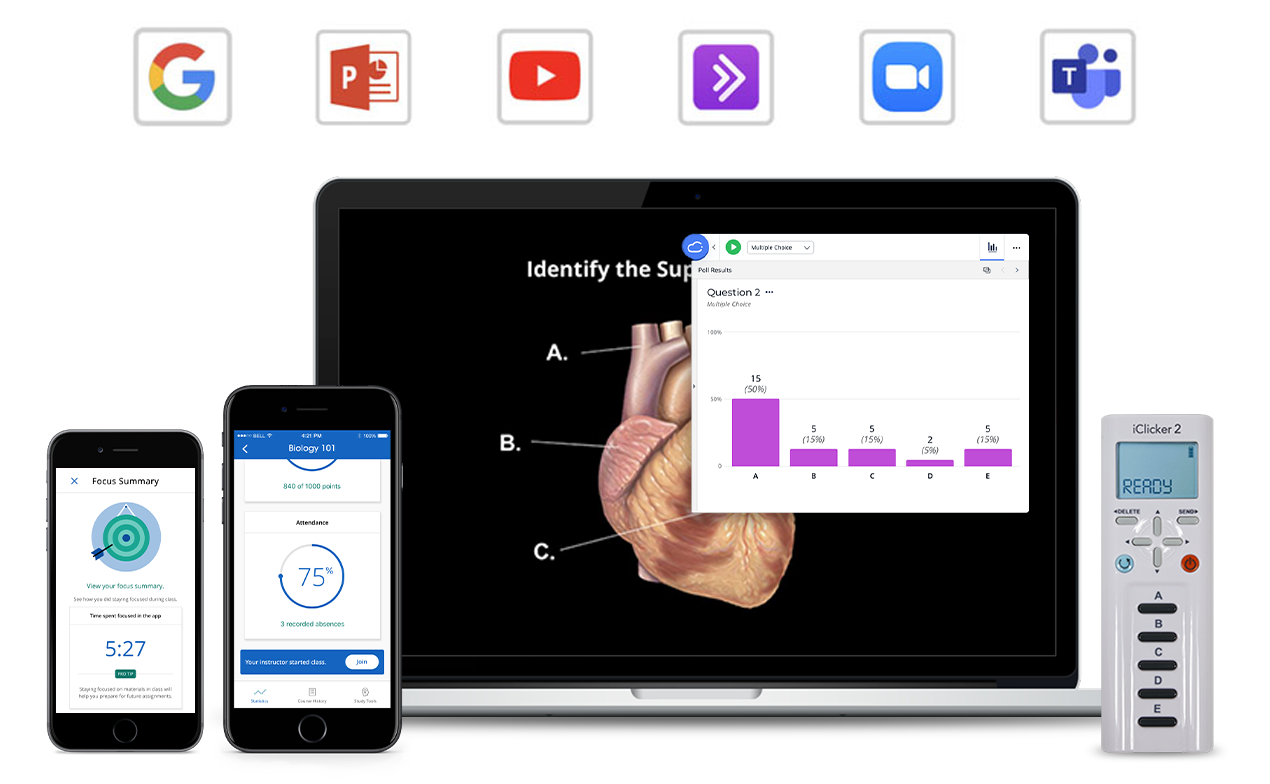
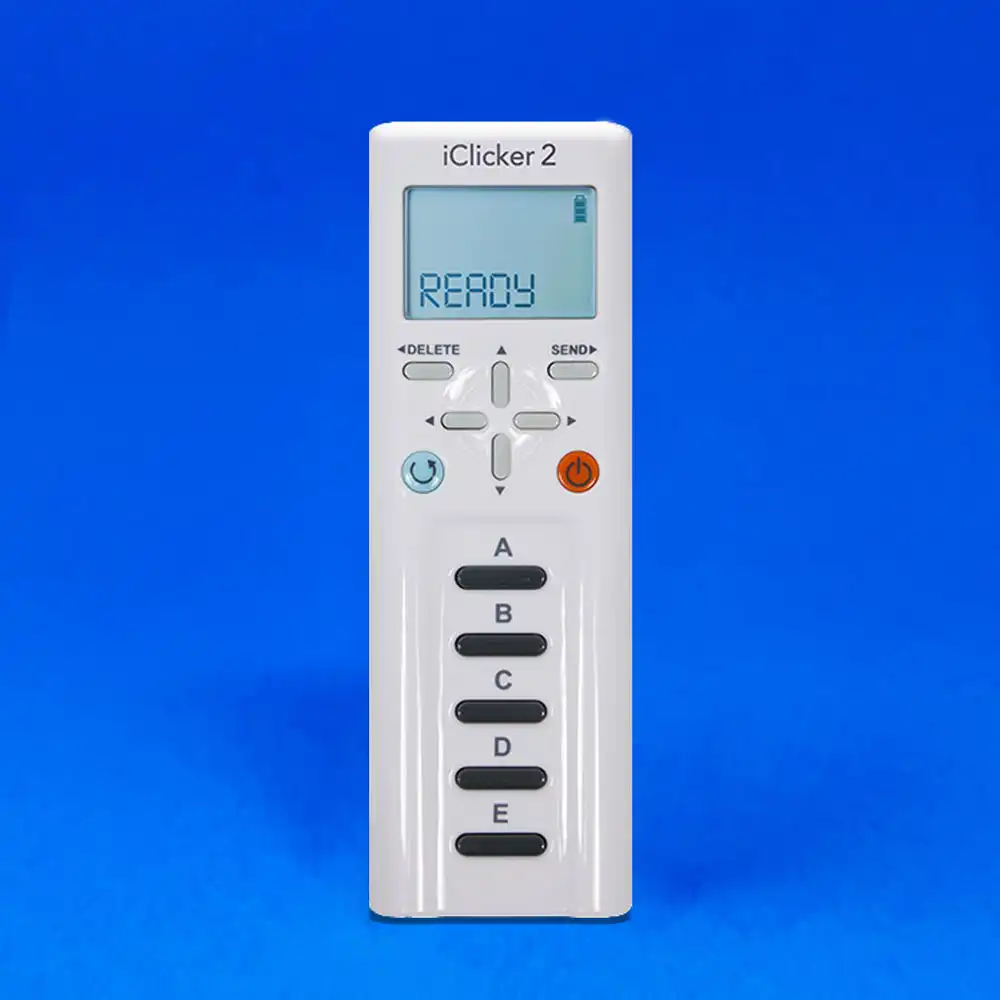
Figure A: Example of iClicker remote with large buttons.
iClicker Student Remotes
- Large buttons (Figure A) on our iClicker remotes promote easy navigation.
- Braille button labels help make our remotes accessible for students who are blind or have low vision (available by special order on iClicker 2 remotes).
- Our remotes can be ordered with a haptic feedback feature that provides vote confirmation through vibrations.
Features for Improved Student Engagement
- Check in with students using a confidence rating survey which allows students to reflect on their learning and provides instructors real-time insight into their understanding.
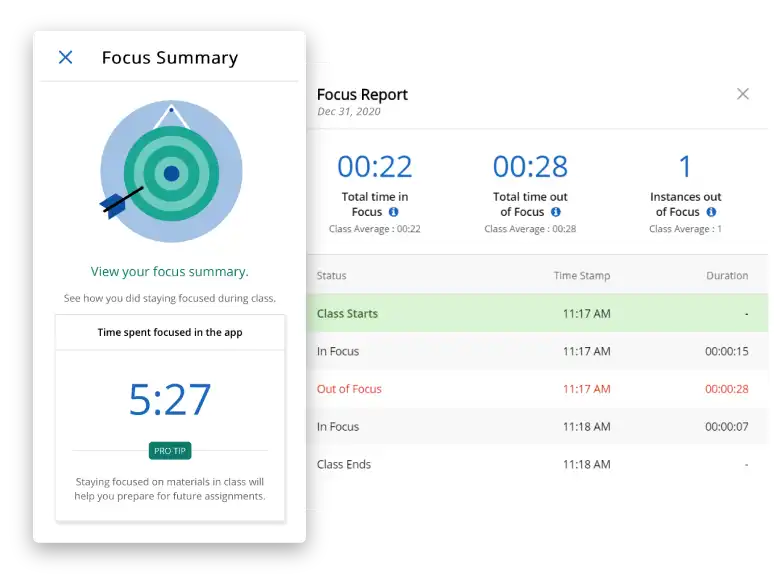
- iClicker tracks student focus within the mobile app experience. By sending a report that shows how often the student navigated away from the iClicker app, this optional feature makes students aware of their habits to help them reduce distractions.

Compatibility with Any Device
- iClicker Student app can be accessed on a student’s preferred device (browser or mobile).
Instructor Desktop Application
- Keyboard shortcuts can be turned on in the instructor profile settings to control polling using a keyboard (Windows only).
Page last updated April 24, 2026.